1. Introduction: What Kind of Reverse-Engineering Infrastructure Do We Need in the AI Era
On the first day I touched Android security after graduating, I used a Frida script to successfully change a function return value. Watching the app behave according to my will kept me excited until 3 a.m.
But as I did more reverse engineering, it started to feel different. Every time I picked up a new app, I had to find the entry point again, write hooks, stitch parameters together, and inspect logs... What used to feel exciting turned into a chore: "Do I really have to write all those hooks again?"
So I started "wrapping" things: Frida templates, Python scripts, Xposed modules. But I soon found that requirements are always customized, and my wrappers usually over-engineered themselves. In the end I still had to go back and write the scripts by hand, and then copy a lot of helper functions over manually. The copy-paste happened over and over, easily more than ten times, and it started to feel repetitive and dull.
As my high school math teacher would say, that is not "beautiful".
So what is "beautiful" reverse engineering in the AI era?
My current view is simple: the less repetitive work I have to do, the more beautiful it is. The more it helps me be lazy, the better.
With large models like Cursor, Claude, and Codex becoming common, AI-assisted static analysis has already become normal. A few days ago I saw frida-mcp, which made me realize that AI can also do dynamic analysis now.
My own work also keeps running into small analysis tasks like card-code bypasses and encryption-chain inspection. The app I use most often is Jiang Ge's Algorithm Assistant Pro, which can handle pop-up dismissal, allow screenshots, enhance Reqable packet capture, monitor file read/write, hook common crypto algorithms, and let me choose which classes to hook. It is much more convenient than writing Xposed scripts.
But after only a few runs, my "牛夫人" feeling came back.
Why do I still have to pick which app to hook every time, manually add methods, restart the process, check logs, and sometimes even drop a Frida script into /sdcard/ and open a file manager to load it? Why am I clicking all this again? Half an hour later I end up with a pile of logs that I still have to analyze myself.
What if AI clicks for me? If you try it, even Opus 4.6 has to think before every click. If it opens a few pages, it has to think ten times. Watching it operate is slower than clicking by hand, and when I remember that it also costs me tokens, I start feeling annoyed.
That is not just unbeautiful. It is almost ugly.
In fact, GUIs are designed for humans. For AI, text commands naturally match the input format of LLMs and can be chained into complex workflows. APIs and CLIs are the natural shape for agents.
Yesterday I also saw CLI-Anything, which takes open-source software and exposes all of its functions through CLI interfaces so agents can use them better.
That applies to open-source projects. Closed-source tools need a reverse-engineering step.
So this series starts an efficiency exploration for my own work: AI-oriented reverse engineering of GUI tools.
What I want to do is peel these human-facing GUI apps through reverse engineering and extract APIs that large models can call directly. Things I have already done should not need to be clicked through again and again.
2. Methodology: Three Common Entry Points from GUI to API
When you get an app that can only be used through UI clicks and want to turn it into a scriptable or AI-controllable interface, do not rush to think about button macros or UI automation testing. That is too human.
You can hope the author provides an interface, or you can explore it yourself first. Usually there are three common entry points:
1. Find the persistent storage point
Every UI click eventually maps to some data change somewhere.
Idea: monitor /data/data/<pkg>/shared_prefs, databases, and external storage under /sdcard/Android/data/<pkg>/files. Once you find a config file (XML/JSON/DB), try modifying it with a script to bypass the UI.
2. Find the IPC interface
If the config is not in normal files, or changing the files does not work, then there is probably in-memory caching or cross-process communication.
Idea: decompile the APK and focus on provider, receiver, and service entries in AndroidManifest.xml, especially components with exported=true. A lot of tools communicate between the UI and backend services through these standard Android mechanisms.
3. Find the CLI
Some tools hide command-line interfaces to make debugging or power-user workflows easier.
Idea: inspect binaries, install scripts, or search the decompiled code for keywords like Runtime.getRuntime().exec and su -c to uncover hidden shell commands.
3. Case Study: Algorithm Assistant MCP
The phased goals were:
- Toggle the apps that Algorithm Assistant should affect inside LSPosed
- Toggle the apps inside the Algorithm Assistant UI
- Read, write, and apply configuration for a single app, including options such as hash hooks and custom method hooks
- Write and apply Frida scripts for a single app
- Extract, structure, and query logs
Everything should be moved toward CLI so an agent can use it directly.
1. Persistence point: confirm package-level config first, then trace AppSwitch
In the experiment, LSPosed had these apps selected:
System Frameworkcom.reqable.androidcom.example.app
Algorithm Assistant's own UI had these selected:
com.lerist.fakelocationcom.example.app
I started with the usual directories:
/data/user/0/com.junge.algorithmAidePro/shared_prefs/data/user/0/com.junge.algorithmAidePro/files/sdcard/Android/data/com.junge.algorithmAidePro/files/config/data/adb/lspd/config
One thing became clear quickly: the target package's hook config really lives in the external directory
/sdcard/Android/data/com.junge.algorithmAidePro/files/config/<targetPackage>.json
But that is only config. The Algorithm Assistant UI's "application selection state (AppSwitch)" does not appear directly in the app's private directory. Under shared_prefs I saw several .sp files that looked like config, but searching for the package name did not hit anything.
The easiest mistake here is to assume "no plain-text package name = no local persistence". That is not true. Since the file layer did not show it, I moved to the code layer instead (the path of least resistance).
2. IPC interface: the Provider exposed the key read/check surface
After pulling base.apk, the point was not to read everything. The point was to find the config read/write path.
Decompilation quickly surfaced a few key pieces:
ConfigReader.getInstanceByAlgorithmAidePro(String str)ConfigProviderandroid:authorities="algorithmAidePro"xposedsharedprefs=true
The most important one was ConfigProvider. It exposed two query dimensions directly:
projection=configprojection=AppSwitch
# Query AppSwitch
adb shell content query --uri content://algorithmAidePro/com.example.app --projection AppSwitch

# Write AppSwitch
adb shell content insert --uri content://algorithmAidePro/com.example.app --bind AppSwitch:s:true
Use the Provider as the read/check surface first, then infer the real storage point from there.
Main AppSwitch location: AppSwitch.json, not the Provider
At that point, one odd thing became obvious:
- The Provider could read
AppSwitch - But
/data/user/0/com.junge.algorithmAidePro/shared_prefs/AppSwitch.xmldid not exist
So it was not that file. Searching for AppSwitch led to the real location:
/data/system/junge/AppSwitch.json
Reading it directly gives a package-name-to-boolean map, for example:
{
  "com.example.app": true,
  "com.lerist.fakelocation": true
}
On this device and this version, the Algorithm Assistant UI's app-selection source of truth already matched the constants in AlgorithmServer:
APP_SWITCH = AppSwitch.jsonBASE_DIR = /data/system/junge/
3. Taking over LSPosed scope through CLI: LSPosed_mod
LSPosed scope is another config set, and it does not live in the Algorithm Assistant directory.
The real location is:
/data/adb/lspd/config/modules_config.db
/data/adb/lspd/config/modules_config.db-wal
String hits across the main DB, WAL, and backup DB confirmed that this database stores LSPosed module enablement data.
But editing it directly with sqlite3 is not ideal, so I switched to the CLI exposed by LSPosed_mod.
First confirm the environment:
- The device has
/data/adb/lspd/bin/cli, and the CLI needs root permission Enable CLImust be turned on in LSPosed Manager
su -c /data/adb/lspd/bin/cli scope set -a com.junge.algorithmAidePro com.qiyi.video/0
4. Continued Exploration: Log Source, Hook DSL, and the Dynamic-Analysis Loop
1. Finding the log source: how it narrowed down to SQLite step by step
/sdcard/Android/media/<targetPackage>/database/algorithmAidePro.db
Round 1: start from the UI's "save all logs" action
The most natural first idea was to automate the "save all logs" button on the log page. Later I confirmed two facts:
- The UI button eventually reaches
ThreadSaveLogList -> ConfigReader.createLogFile(null) - The exported text file lands in:
/sdcard/Android/data/com.junge.algorithmAidePro/files/Log/<yyyy-MM-dd_HH_mm_ss>.log
In the first round, I followed already verified paths:
content://algorithmAidePro/...- logs or config files already written to external storage
First, content://algorithmAidePro/... could reliably read:
projection=configprojection=AppSwitch
But there was no export-log-related projection, and no stable insert/update/call write entry either.
Second, the Frida log chain existed independently.
/sdcard/Android/data/com.junge.algorithmAidePro/files/files/fridaLog.html
That file can be pulled directly, but it only corresponds to Frida script logs, not native hook logs.
And while fridaLog.html does exist, it is more of a UI/export surface and not necessarily the lowest runtime write surface.
Later in the actual device run, com.example.app exposed a more direct file:
/sdcard/Android/media/com.example.app/database/frida.log
This file records Frida runtime logs directly, and it is a more direct smoke-test target than fridaLog.html.
Round 2: start doubting whether UI text export is the best target
At this point it was clear that "save all logs" is itself a human-facing export action. Its essence is:
- read data from the real internal source
- format it as text
- write it to
files/Log/*.log
Trying to replace the button click felt like the wrong direction, and it could not avoid the UI trigger anyway.
The better question was: where is the raw storage behind the data shown on the log page? The idea shifted from "simulate UI export" to "find the log source directly".
Round 3: keep tracing from private directories and system-side config
Next I checked a few places that looked the most likely to hold logs:
/data/user/0/com.junge.algorithmAidePro/files/data/user/0/com.junge.algorithmAidePro/databases/data/system/junge/
/data/system/junge/ had a lot of content, and it looked very much like the Algorithm Assistant system-side repository:
AppSwitch.jsonlogList.jsoncom.example.app/config.json
At this point I already knew:
/data/system/junge/is more of a config repository than a log-detail repositoryfiles/Log/*.logis more of an export result than the long-term source- the real log source is more likely to be a separate database per target package
Following that line naturally led to Android/media/<pkg>/database.
Round 4: search globally by database name
Since the UI page is probably backed by structured data, I should search for the database rather than keep staring at text files.
The turning point was finding:
/data/media/0/Android/media/com.example.app/database/algorithmAidePro.db
Once that path appeared, several things clicked:
- The path is per target package, which fits the idea of one separate log store per app
- The name is directly
algorithmAidePro.db, which is clearly tied to the product - It lives under the target app's media directory, not the UI export directory
At that point there was no reason to keep guessing. I pulled it and opened it with SQLite.
Round 5: verify whether this DB is actually the log source
After pulling the DB, sqlite_master was very clean:
table|LOG_DATA_V2|LOG_DATA_V2
table|android_metadata|android_metadata
table|sqlite_sequence|sqlite_sequence
The schema also pointed directly to logging:
CREATE TABLE IF NOT EXISTS "LOG_DATA_V2" (
  "_id" INTEGER PRIMARY KEY AUTOINCREMENT,
  "GROUP" INTEGER NOT NULL,
  "TYPE" INTEGER NOT NULL,
  "OBJ_NAME" TEXT,
  "CLASS_NAME" TEXT,
  "LOG_NAME" TEXT,
  "TIME" INTEGER NOT NULL,
  "IS_READ" INTEGER NOT NULL,
  "LOG_DETAILS_RAW" BLOB,
  "CALL_STACK" TEXT
);
At this point it was basically confirmed:
- this is not a UI export file
- this is the raw structured store behind the log page
Querying the latest rows also made sense:
com.example.app.MainActivity | unregisterPluginTestReceiver()com.example.app.MainActivity | onDestroy()com.example.app.MainActivity | lambda$setupTestButtons$3$com-example-app-MainActivity()
And the row count on this device was real:
124
The original idea was:
- Avoid clicking the UI button for "save all logs"
- Make the app generate a
.log adb pullit
What I actually found was:
adb pull /sdcard/Android/media/<pkg>/database/algorithmAidePro.db- Query it directly with
sqlite3or a GUI tool
The latter is much better for future MCP work:
-
structured
-
filterable
-
sortable
-
incrementally exportable
-
directly convertible to TSV / CSV / JSON
-
The UI text export path has been reverse-engineered, but it is not the best automation target
-
content://algorithmAidePro/...is still a reliable read/check surface, not a log-export surface -
Frida logs still live separately in
fridaLog.html -
Native hook logs already have a better non-UI main path:
Android/media/<pkg>/database/algorithmAidePro.db
The small closed loop I ended up with was not "automatically click save logs", but "export the structured hook-log database directly through CLI and query it with SQL".
Example:
adb pull /sdcard/Android/media/com.example.app/database/algorithmAidePro.db .
sqlite3 algorithmAidePro.db 'select count(*) from LOG_DATA_V2;'
sqlite3 -header -column algorithmAidePro.db "
select
  _id,
  \"GROUP\",
  TYPE,
  ifnull(OBJ_NAME,'') as obj_name,
  ifnull(CLASS_NAME,'') as class_name,
  ifnull(LOG_NAME,'') as log_name,
  TIME,
  length(LOG_DETAILS_RAW) as raw_len
from LOG_DATA_V2
order by TIME desc
limit 10;
"
Tip 1: Provider is an extremely strong verification surface
If the target exposes a Provider, do not only rely on static analysis. Because a Provider can answer directly:
- whether a key exists
- what its current value is
- which config the business code really reads
That is much faster than guessing file formats.
Tip 2: Xposed modules deserve extra attention under /data/misc/.../prefs
A lot of people keep staring at:
/data/user/0/<pkg>/shared_prefs
But for modules with xposedsharedprefs, the config may not be in the app-private directory at all. It may live in a shared location that Xposed can read.
2. MCP breakdown: separate the three layers of state first
If I want to turn Algorithm Assistant into a general Java Hook MCP later, the actions need to be split into at least three layers:
- Write the target package hook config
- location:
/sdcard/Android/data/com.junge.algorithmAidePro/files/config/<targetPackage>.json
- location:
- Turn on the app in the Algorithm Assistant UI
- current persisted source of truth:
/data/system/junge/AppSwitch.json - verification should be split into two layers:
- storage-layer readback from
AppSwitch.json - runtime-layer readback from
logList.json - Provider-layer readback from
projection=AppSwitch(reference only)
- storage-layer readback from
- current persisted source of truth:
- Sync LSPosed scope
- preferred interface:
/data/adb/lspd/bin/cli - persistence:
/data/adb/lspd/config/modules_config.db
- preferred interface:
If those three layers are not separated, it is very easy to mix states up when building CLI and MCP later.
What I mainly separated this time was:
- Algorithm Assistant's own config
- Algorithm Assistant UI's app-enable state
- LSPosed scope config
3. On-device verification: package-level JSON
When all default switches are enabled, the package-level JSON on the device roughly looks like this:
{
  "ApplicationSwitch": true,
  "ExceptionSwitch": true,
  "SharedPreferencesPutSwitch": true,
  "activitySwitch": true,
  "assetsSwitch": true,
  "cameraHookSwitch": true,
  "checkRootSwitch": true,
  "cipherSwitch": true,
  "closeDialogSwitch": true,
  "dialogKeyword": "注册码,机器码,激活码",
  "dialogSwitch": true,
  "digestSwitch": true,
  "exitSwitch": true,
  "fileDeleteSwitch": true,
  "fileSwitch": true,
  "fileWriteSwitch": true,
  "getSharedPreferencesSwitch": true,
  "hiddenVpnSwitch": true,
  "hiddenWifiProxySwitch": true,
  "hiddenXposedSwitch": true,
  "justTrustMePlushSwitch": true,
  "logSwitch": true,
  "macSwitch": true,
  "onClickSwitch": true,
  "reqableSwitch": true,
  "reqableSwitch_native": true,
  "screenSwitch": true,
  "shellSwitch": true,
  "signSwitch": true,
  "sqliteDeleteSwitch": true,
  "sqliteExecSQLSwitch": true,
  "sqliteInsertSwitch": true,
  "sqliteOpenSwitch": true,
  "sqliteQuerySwitch": true,
  "sqliteUpdateSwitch": true,
  "textViewSwitch": true,
  "webCryptSwitch": true,
  "webViewDebugSwitch": true,
  "webViewLoadUrlSwitch": true
}
Verification 1: projection=config is not decided by config.xml
It is easy to assume:
AppSwitch.jsoncontrols the UI togglesconfig.xmlcontrols the feature configfiles/config/<pkg>.jsonis just an export copy
But on-device verification showed that at least for projection=config, that is not the case.
I ran two comparison experiments:
pkg.json.digestSwitch=true,config.xml.digestSwitch=falseadb shell content query --uri content://algorithmAidePro/com.example.app --projection config- returned
digestSwitch=true
pkg.json.digestSwitch=false,config.xml.digestSwitch=false- same query
- returned
digestSwitch=false
That is enough to show that:
/sdcard/Android/data/com.junge.algorithmAidePro/files/config/<pkg>.json
is the primary control source for projection=config, and it takes priority over:
/data/misc/<uuid>/prefs/com.junge.algorithmAidePro/config.xml
So when I want to change a target package config by field, I can edit the package-level JSON directly and do not need to touch config.xml.
Verification 2: root does not mean unrestricted writes
On this machine, the su context is:
uid=0(root) gid=0(root) context=u:r:magisk:s0
SELinux is still Enforcing. Also:
setenforce 0fails directly- shell redirection that tries to overwrite
config.xmlgetsPermission denied
That means "having root" does not mean "every write path works". Especially for paths under /data/misc/.../prefs, I need to respect the magisk su context instead of assuming it just works.
Verification 3: recommended CLI order for plain file overwrite
If the goal is "do not click the UI, just change it correctly from the command line", the most stable loop has been:
force-stopAlgorithm Assistant- overwrite the package-level JSON
- start Algorithm Assistant
- read back through the Provider for verification
Command order:
adb shell am force-stop com.junge.algorithmAidePro
adb push com.example.app.json /data/local/tmp/com.example.app.json
adb shell su -c 'cp /data/local/tmp/com.example.app.json /sdcard/Android/data/com.junge.algorithmAidePro/files/config/com.example.app.json'
adb shell monkey -p com.junge.algorithmAidePro -c android.intent.category.LAUNCHER 1
adb shell content query --uri content://algorithmAidePro/com.example.app --projection config
4. Custom hook export: the native DSL is already visible
I also dumped the "custom hook method" that I can quickly add by hand inside Algorithm Assistant.
For com.example.app, there are two files with the same content on the device:
/sdcard/Android/data/com.junge.algorithmAidePro/files/config/com.example.app.json/sdcard/Android/data/com.junge.algorithmAidePro/files/exportConfig/com.example.app.json
config/<pkg>.jsonis the active configexportConfig/<pkg>.jsonis the exported snapshot- The exported file is already the native config syntax accepted by Algorithm Assistant, so I do not need to guess the schema first
The exported core for com.example.app looked roughly like this:
{
  "enableScript": "bezierzhixian.js",
  "hookList": [
    {
      "argsValues": [],
      "className": "com.example.app.DemoTarget",
      "constructor": true,
      "description": "来自快速添加的Hook",
      "enable": true,
      "intercept": false,
      "methodName": "<init>",
      "parameterSign": "",
      "printLog": true,
      "results": ""
    },
    {
      "argsValues": [],
      "className": "com.example.app.DemoTarget",
      "constructor": false,
      "description": "来自快速添加的Hook",
      "enable": true,
      "intercept": false,
      "methodName": "someMethod",
      "parameterSign": "",
      "printLog": true,
      "results": ""
    }
  ]
}
The key takeaway is that the native hook DSL is already there. I do not need to treat the UI as the source of truth.
5. What This Means
The point is not to turn every GUI into a CLI for the sake of it. The point is to find the points that already have structure:
- storage
- IPC
- command line
Once those are separated, the UI becomes a presentation layer instead of the only control surface.
That is the path I want for future reverse-engineering work: not more clicking, but less repeated clicking.
6. Architecture Sketch
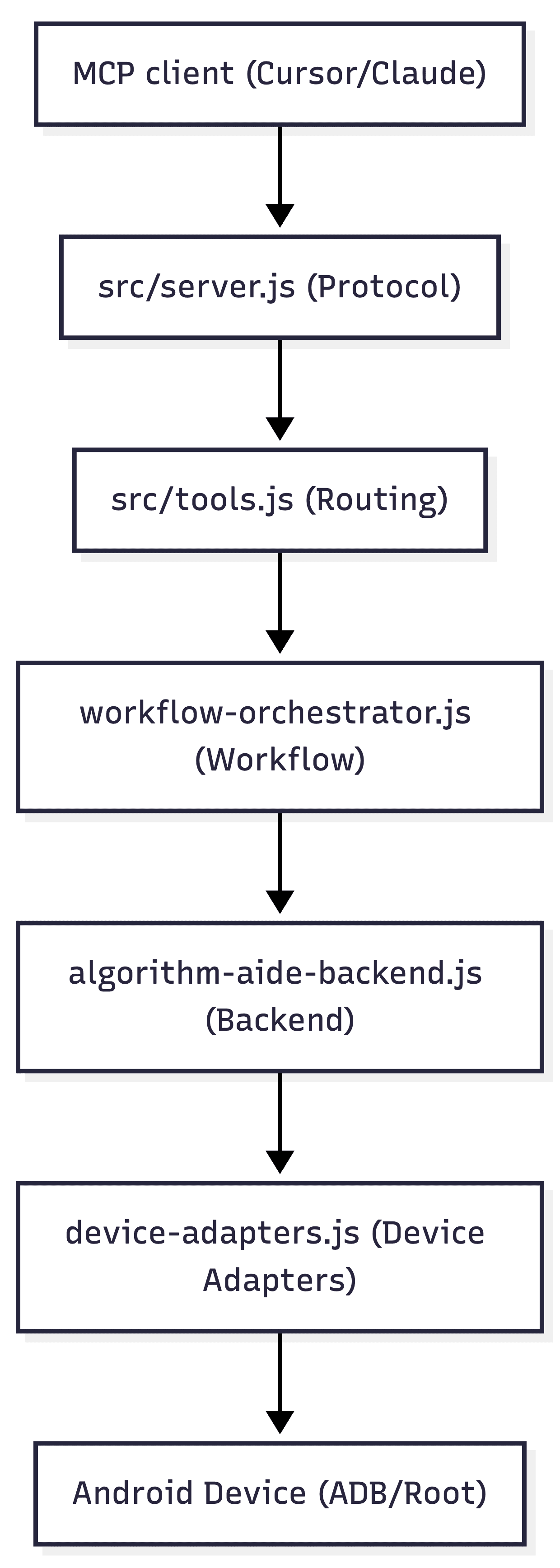
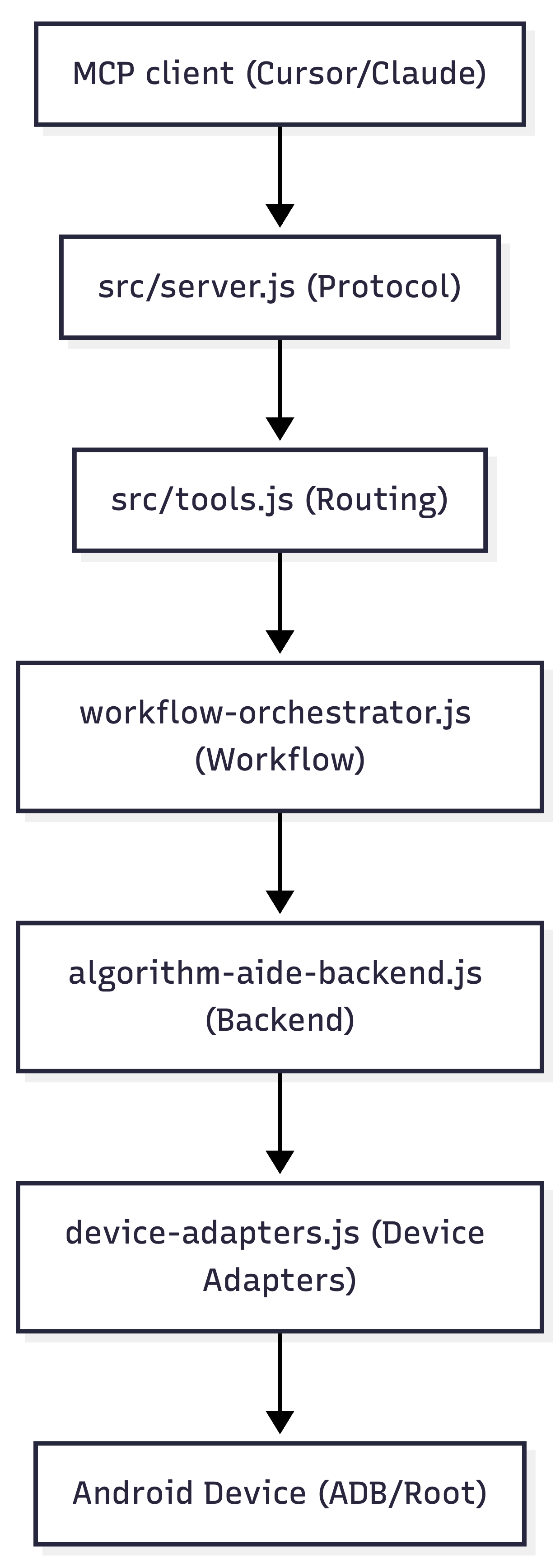
The current chain can be summarized like this:
7. If I Continue This Line
The next step is not to keep staring at the UI. It is to turn these verified surfaces into a repeatable CLI and then into MCP actions:
- package config write
- app enable state read/write
- LSPosed scope sync
- log query and export
Once that exists, the agent can work with the tool instead of the GUI.